Use Cases
Papaya’s API will continue to evolve with innovative capabilities that unlock new possibilities for partners and merchants. The initial focus is on digital ordering, reservation integrations, access to order data for analytics and reporting, and inventory management systems.
Setup
The API is scoped to a Papaya outlet, which represents an individual restaurant, shop, or branch at a specific physical location. In Papaya’s structure, an outlet sits under a merchant — the top-level entity that groups together multiple outlets.
To begin using the API, you must first Enable Open API for a specific outlet via the merchant dashboard: https://merchant.papaya.co.th/settings/openapi
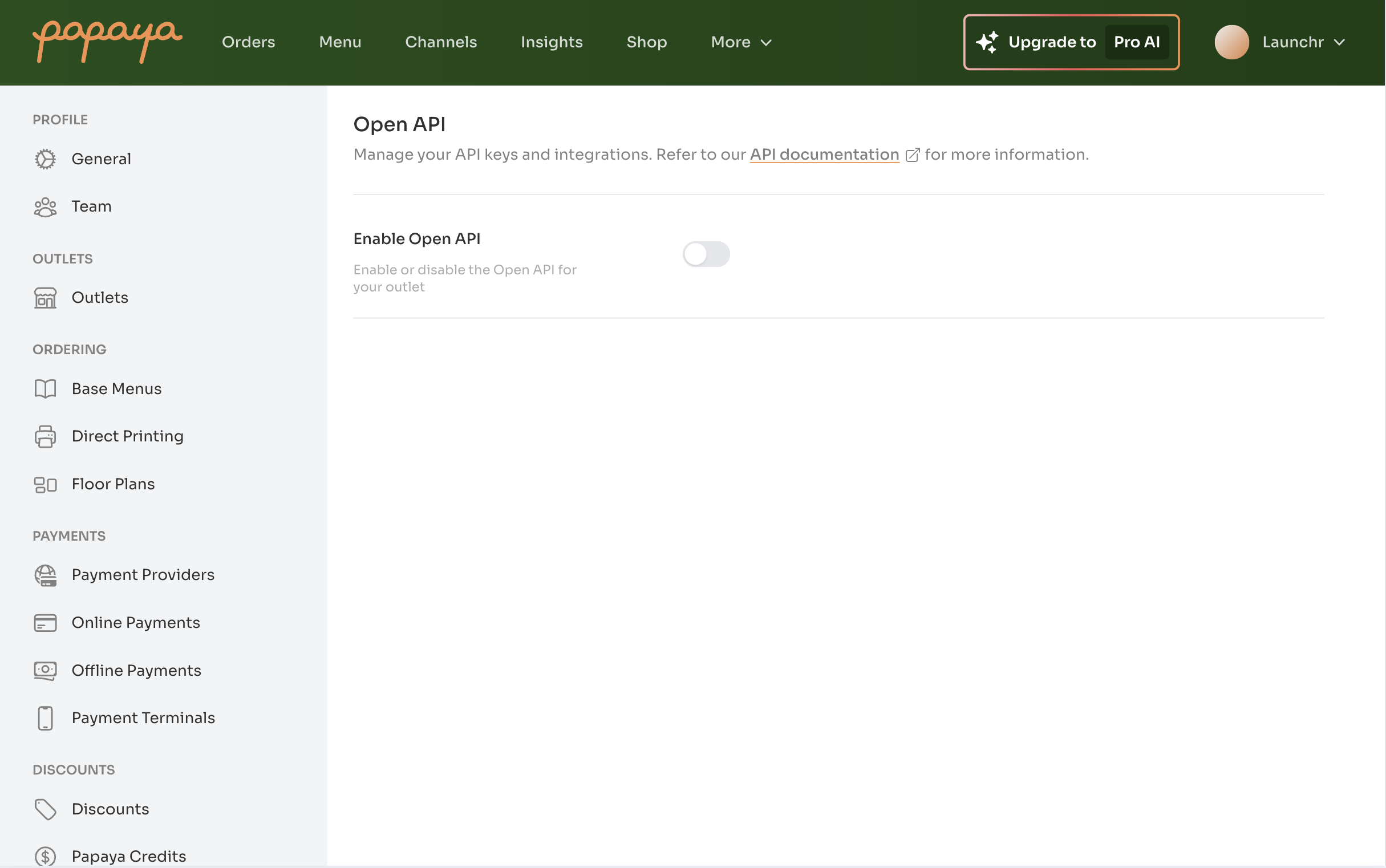
Once enabled, you can generate one or more API keys, each linked to a specific use case along with a corresponding webhook URL.
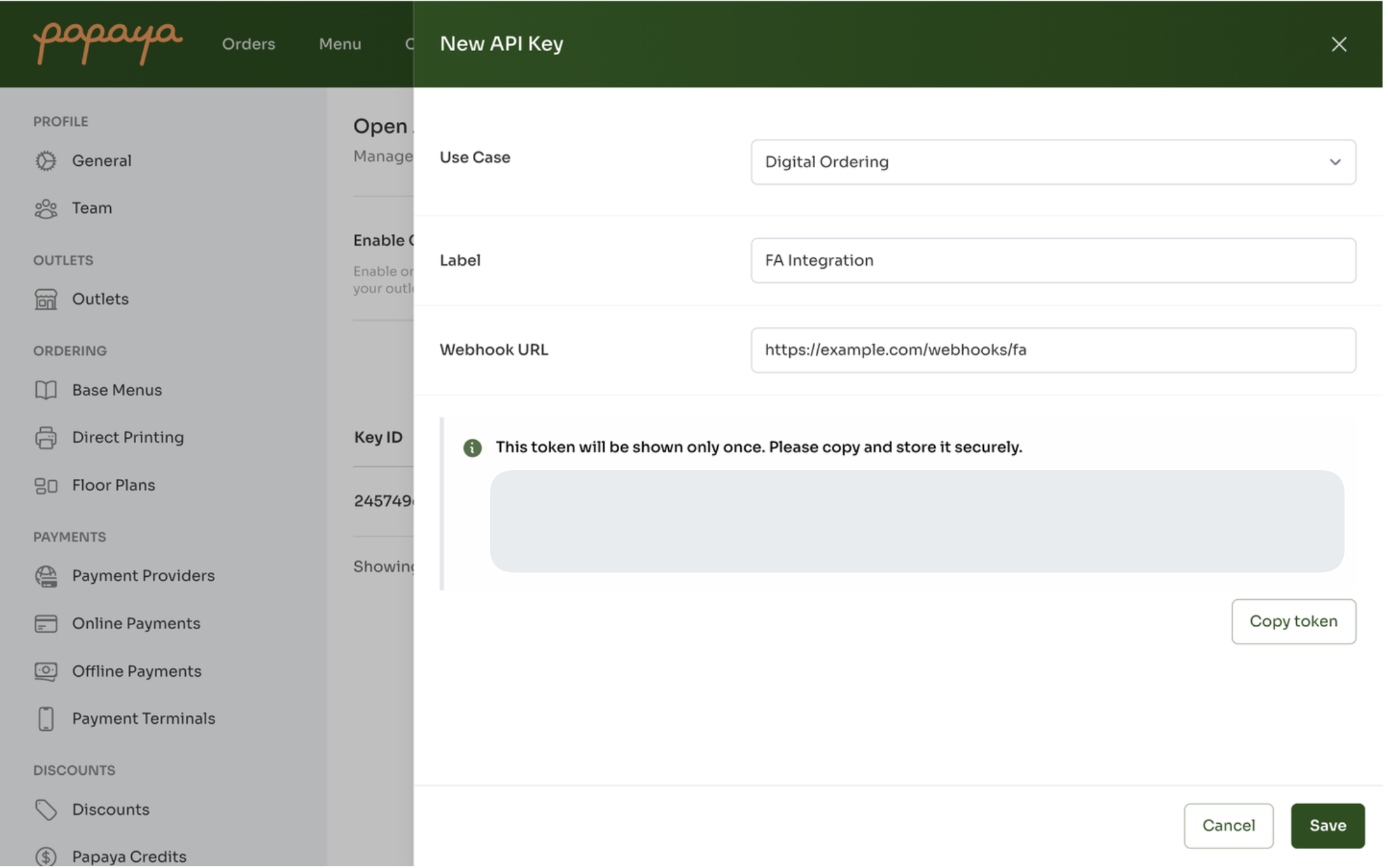
Access tokens are shown only once. Please copy and store them securely. If forgotten, you’ll need to delete and recreate the API key for that use case.
Digital Ordering
Integrate food-delivery aggregators or other online ordering platforms with Papaya’s POS.
Flow
-
Credential & Channel Setup
- In the Papaya merchant dashboard, create an API key with the use case set to “Digital Ordering”, and securely store the generated Bearer
tokenfor authentication. - Under Channels in the merchant dashboard, register your ordering platform as a channel of type “Partner” (e.g. Grab, LINEMAN). This allows it to be retrieved via the
GET/api/v1/channelsendpoint.
- In the Papaya merchant dashboard, create an API key with the use case set to “Digital Ordering”, and securely store the generated Bearer
-
Sync Menu
-
Fetch the current menu for that channelType:
GET /api/v1/menus?channelType={channelType} -
Noting that for
channelType = partner, you should also include thepartnerChannelquery parameter with the appropriate string value (e.g.grab) to ensure partner-specific menu overrides are applied.
-
-
Create Order
-
When the ordering platform receives a new order, forward it into Papaya:
POST /api/v1/orders

{
  "channelId": "{channel.id}",
  "partnerInfo": {
    "partnerChannel": "grab",
    "orderId": "GF-123"
  },
  "items": [
    {
      "customerName": "Pim",
      "menuItemId": "{menuItem.id}",
      "quantity": 2,
      "options": [
        {
          "optionId": "{option.id}",
          "quantity": 1
        }
      ]
    }
  ],
  "payments": [
    {
      "offlineMethod": "card",
      "amount": 100,
      "customerName": "Pim",
      "externalId": "stripe-123",
      "currency": "THB",
      "created": "2025-06-22T08:55:26.169Z"
    }
  ]
}
-
-
Track & Fulfill
- Receive live updates via your configured webhook (recommended)
- or, poll the order using
GET/api/v1/orders/:id
-
To Cancel an Order
Use the update order endpoint to change the order
statustocancelledwhen an order is no longer proceeding.PUT /api/v1/orders/:id { "status":"cancelled" }
Key Endpoints
| Endpoint | Method | Description |
|---|---|---|
/channels |
GET |
List available channels |
/menus |
GET |
Retrieve menu for a given channelType |
/orders |
POST |
Create a new order |
/orders/:id |
GET |
Fetch order details & status |
/orders/:id |
PUT |
Cancel an order |
| Webhook URL | POST |
Receive order status notifications |
Reservations
Connect a restaurant booking system to initiate orders on the POS from reservations and walk-ins, and receive real-time order updates.
Flow
-
Credential & Channel Setup
- In the Papaya merchant dashboard, create an API key with the use case set to “Reservations”, and securely store the generated Bearer
tokenfor authentication. - In the merchant dashboard under Channels, create a channel for each table, ensuring each is set to type “Dine-in”. All channels can then be retrieved via the
GET/api/v1/channelsendpoint.
- In the Papaya merchant dashboard, create an API key with the use case set to “Reservations”, and securely store the generated Bearer
-
Open an Order (Table)
-
When you mark a customer as arrived on your reservation platform, your system calls:
POST /api/v1/orders/reservations { "channelId": "{channel.id}", "guestCount": 4, "partnerReservationInfo": { "partnerName": "Reservation App Name", "reservationId": "res-123", "firstName": "John", "lastName": "Doe", "email": "john.doe@example.com", "phoneNumber": "+66922801111" }, "payments": [ { "offlineMethod": "card", "amount": 100, "currency": "THB", "externalId": "stripe-123", "created": "2025-06-22T08:55:26.169Z" } ] } -
This creates an order in Papaya POS linked to the reservation. A
paymentsarray is optional and should be included if a deposit has already been paid.
Only channels with type
dine-incan be opened using thePOST/orders/reservationsendpoint. -
-
Update an Order
-
When the reservation changes on your platform — host moves the table, marks the booking cancelled, edits the party size, or updates guest contact info — call:
PUT /api/v1/orders/reservations/{id} { "channelId": "{channel.id}", // move table "status": "cancelled", // close the order "guestCount": 6, "partnerReservationInfo": { "firstName": "Jane", "email": "jane@example.com", "note": "VIP — window seat" } } -
All fields are optional; send only what’s changing. Notes:
status: "cancelled"cannot be combined with other fields.partnerNameandreservationIdare immutable.- Only the API key that created the order can update it.
-
-
Listen for Order Updates
-
After initiating an order, your reservation platform will receive order update notifications via the Webhook URL configured when creating the API key in the merchant dashboard.
-
Four events can trigger a reservation order update:
order.totalsUpdated— order totals have changedorder.statusUpdated— order status has changed (e.g. fromopentocancelled)order.channelUpdated— the order was moved between tablesorder.guestCountUpdated— guest count has changed
-
Use the
GET/api/v1/orders/:idendpoint to fetch the latest order details and respond as needed based on your platform’s business logic.
Webhook notifications will only be sent for orders initiated from the reservation platform.
-
-
Listen for Channel Updates
- When a merchant updates their channel (table) configuration in the merchant dashboard, those changes are published to reservation partners.
- You will receive a
channels.publishednotification via the Webhook URL. - Upon receiving this event, call
GET/api/v1/channelsto retrieve the latest channel (table) configuration data.
Key Endpoints
| Endpoint | Method | Description |
|---|---|---|
/channels |
GET |
List available channels |
/orders/reservations |
POST |
Open a reservation-linked order in Papaya |
/orders/reservations |
PUT |
Update a reservation-linked order |
/orders/:id |
GET |
Fetch latest order details |
| Webhook URL | POST |
Receive postbacks for reservation order updates and channel / table config changes |
Order Data
Get complete sales and order data from Papaya’s POS to simplify reporting, reconciliation, and performance tracking.
Flow
-
Credential Setup
- In the Papaya merchant dashboard, create an API key with the use case set to “Order Data”, and set a webhook URL for receiving order updates.
- Securely store the generated Bearer
tokenfor authentication.
-
Listen for Order Completion (Recommended)
-
When orders are placed through Papaya’s POS, regardless of source, you’ll receive real-time updates via your configured webhook URL. These updates are sent as lightweight “thin” events containing only the event name and Order ID.
-
For the Order Data use case, only two event types are sent from the Order status webhook:
order.complete— the order was successfully completed and paidorder.cancelled— the order was cancelled, either before or after payment
These two events represent the final, permanent state of an order.
POST {webhook_url} { "id": "01K7KAT54KQ6544MKY9G5TTEWG", "event":"order.complete", "updatedAt": "2025-10-10T08:55:26.169Z" } -
Use the
GET/api/v1/orders/:idendpoint to retrieve the latest order details for your integration or reporting needs.We recommend this webhook-driven approach as your primary integration pattern. It ensures you always have the latest data without unnecessary polling.
You may receive multiple order updates, as orders can be cancelled after completion or reopened and modified before being completed again. However, merchants should always transition orders back to either a complete or cancelled state.
-
-
Retrieve Orders by Date Range (Alternative)
If you need to reconcile, backfill, or retrieve orders in bulk, use the
GET /api/v1/ordersendpoint to query orders within a specified date range.- Filter by status (
complete,cancelled) via thestatusquery parameter. Defaults to both. - Maximum date range is 31 days.
- Results are paginated with up to 25 orders per status per page using cursor-based pagination.
- Each order includes the full payload (items and payments), matching the
GET /api/v1/orders/:idresponse shape.
GET /api/v1/orders?from=2026-01-01T00:00:00Z&to=2026-01-31T23:59:59ZThis endpoint is best suited for reconciliation and backfilling — not as a replacement for webhooks. Excessive polling may result in rate limiting (5 requests/second).
- Filter by status (
Key Endpoints
| Endpoint | Method | Description |
|---|---|---|
/orders/:id |
GET |
Fetch latest order details |
/orders |
GET |
Fetch orders by date range |
| Webhook URL | POST |
Receive order.complete and order.cancelled notifications |
Inventory Management
Sync Papaya POS menus and real-time orders to inventory management systems. Automatically update stock levels and ingredient usage as orders are finalised.
Flow
-
Credential Setup
- In the Papaya merchant dashboard, create an API key with the use case set to “Inventory Management”, and set a webhook URL for receiving menu and order updates.
- Securely store the generated Bearer
tokenfor authentication.
-
Listen for Menu Changes
-
When the merchant publishes menu updates (new items, pricing changes, availability toggles), you’ll receive a webhook notification —
menus.published:POST {webhook_url} { "event":"menus.published", "updatedAt": "2025-10-10T08:55:26.169Z" } -
Use the
GET/api/v1/menusendpoint to retrieve the latest POS menu data and sync with inventory system.
-
-
Listen for Order Completion (Recommended)
-
When orders are placed through Papaya’s POS, you’ll receive real-time updates via your configured webhook URL. These updates are sent as lightweight “thin” events containing only the event name and Order ID.
-
For the Inventory Management use case, only two event types are sent from the Order status webhook:
order.complete— the order was successfully completed and paidorder.cancelled— the order was cancelled, either before or after payment
These two events represent the final, permanent state of an order.
POST {webhook_url} { "id": "01K7KAT54KQ6544MKY9G5TTEWG", "event":"order.complete", "updatedAt": "2025-10-10T08:55:26.169Z" } -
Use the
GET/api/v1/orders/:idendpoint to retrieve the latest order details, ensuring the inventory system has all the necessary sales context for ingredient usage, etc.We recommend this webhook-driven approach as your primary integration pattern. It ensures your inventory system always reflects the latest order state without unnecessary polling.
You may receive multiple order updates, as orders can be cancelled after completion or reopened and modified before being completed again. However, merchants should always transition orders back to either a complete or cancelled state.
-
-
Retrieve Orders by Date Range (Alternative)
If you need to reconcile inventory adjustments or backfill order data for a specific period, use the
GET /api/v1/ordersendpoint to query orders within a date range.- Filter by status (
complete,cancelled) via thestatusquery parameter. Defaults to both. - Maximum date range is 31 days.
- Results are paginated with up to 25 orders per status per page using cursor-based pagination.
- Each order includes the full payload (items and payments), matching the
GET /api/v1/orders/:idresponse shape.
GET /api/v1/orders?from=2026-01-01T00:00:00Z&to=2026-01-31T23:59:59ZThis endpoint is best suited for reconciliation and backfilling — not as a replacement for webhooks. Excessive polling may result in rate limiting (5 requests/second).
- Filter by status (
Key Endpoints
| Endpoint | Method | Description |
|---|---|---|
/menus |
GET |
Retrieve menus for a given channelType |
/orders/:id |
GET |
Fetch individual order details |
/orders |
GET |
Fetch orders by date range |
| Webhook URL | POST |
Receive menus.published, order.complete and order.cancelled notifications |
Accounting
Combine sales and purchase costs to feed an accounting system.
Accounting is not a separate use case. Create the API key with the use case set to “Order Data” — one key reads both halves:
- Sales — completed and cancelled orders, via the webhooks and endpoints in Order Data above.
- Purchases — goods receipts, the supplier bills merchants record against inventory, via
GET /api/v1/inventory/goods-receipts.
Without the purchases half, an accounting integration only sees revenue.
Flow
-
Credential Setup
Follow the Order Data setup above. The same Bearer
tokenauthenticates the goods receipts endpoint — the merchant and outlet scope is read from the key.If “Order Data” does not appear in the use case dropdown, the outlet’s plan does not include Open API data access. Contact your Papaya representative.
-
Poll for Goods Receipts
When stock arrives at an outlet, staff record a goods receipt in Papaya — either by uploading the supplier invoice (photo or PDF) for automatic extraction, or by keying the lines in manually. A
completedgoods receipt is the POS’s record of a supplier bill: what was delivered, from which supplier, at what cost, and with what tax.Goods receipts do not emit webhooks. Query them on a schedule — nightly is enough for most accounting workflows.
GET /api/v1/inventory/goods-receipts?from=2026-01-01T00:00:00Z&to=2026-01-31T23:59:59Z
Query Rules
fromandtoare required, in RFC 3339 format, and filter on thecreatedtimestamp — when the receipt was recorded in Papaya, not the supplier’s delivery date.- Maximum date range is 31 days.
- Results are ordered oldest-first by
created, up to 25 receipts per page. A page may return fewer than 25 and still carry anextcursor — always follow the cursor until it isnull. statusaccepts a comma-separated list (draft,completed,cancelled,partiallyReceived) and defaults tocompleted— real bills only. Leave the default in place for accounting: drafts are unconfirmed and their amounts still change.supplierIdfilters to a single supplier.- Rate limit is 5 requests/second per API key, shared with the
/ordersendpoints.
Field Mapping
| Field | Use it as |
|---|---|
deliveryDate |
The bill date in your accounting system |
created |
When Papaya recorded the receipt. The from/to window filters on this — use it for incremental syncs |
goodsReceiptNumber |
Reference number (e.g. GR-0001) |
supplier |
Vendor — supplierId, name, and address, snapshotted when the receipt was recorded |
items[].totalPrice |
Line amount. Authoritative for accounting |
items[].discountAmount |
Per-line supplier discount. The line nets to totalPrice - discountAmount |
items[].taxRate*, items[].taxAmount |
The tax rate snapshot applied to that line at receipt time — taxRateName, taxRate, taxRateKind. taxRate is a decimal (0.07 = 7%) |
items[].pricePerUnit |
Unit cost per inventoryUom. A derived rate rounded to 6 decimal places — do not reconstruct line totals from it |
discount |
Document-level supplier discount (the invoice-footer “less discount” line). Allocated across lines pro-rata by net line value when computing each line’s tax |
shippingFee |
Freight or delivery charge. Never discounted and never taxed |
tax |
Total tax on the receipt |
total |
Amount payable |
isTaxInclusive |
Whether each line’s totalPrice already includes tax — this determines how total is composed |
Reconciling Totals
All amounts are in the outlet’s currency. Both discount levels come off the goods value before tax, and never off the shipping fee. A line’s tax base is its net (totalPrice - discountAmount) less its pro-rata share of the document discount.
- When
isTaxInclusiveisfalse:total = totalPrice - line discounts - discount + tax + shippingFee - When
isTaxInclusiveistrue:total = totalPrice - line discounts - discount + shippingFee(tax is already inside the line prices)
Header amounts are rounded to 2 decimal places, so summed line amounts may differ from the header by up to 0.01. Post the header total as the bill amount and let your accounting system absorb the rounding on the lines.
Older receipts recorded before totals were captured may omit tax and total. Treat these fields as optional and fall back to the line items.
Things to Know
- Goods receipts are outlet-scoped. Each API key covers one outlet — run one sync per outlet. Passing a
merchantIdoroutletIdthat does not match the key returns403. - Suppliers come from the receipt, not a directory. Each receipt carries its own
suppliersnapshot. TheGET /inventory/suppliersandGET /inventory/productsendpoints are not available to outlet API keys — build your vendor mapping from thesupplier.supplierIdvalues you see on receipts. - Creating goods receipts is not available to outlet API keys.
POST /api/v1/inventory/goods-receiptsis reserved for Papaya’s invoice-import flows. Goods receipts are recorded by the merchant in the POS or dashboard. - Credit notes are not exposed via the API. Supplier returns and credits raised against a goods receipt in Papaya will not appear in this endpoint. Handle them in your accounting system directly.
- A receipt can change after you have read it. A
completedreceipt can later be cancelled, or apartiallyReceivedone completed. Re-poll a trailing window (e.g. the last 7 days) on each run and update bills you have already posted, keying on the goods receiptid.
Key Endpoints
| Endpoint | Method | Description |
|---|---|---|
/inventory/goods-receipts |
GET |
Fetch goods receipts by date range (purchase costs) |
/orders |
GET |
Fetch orders by date range (sales) |
/orders/:id |
GET |
Fetch latest order details |
| Webhook URL | POST |
Receive order.complete and order.cancelled notifications |